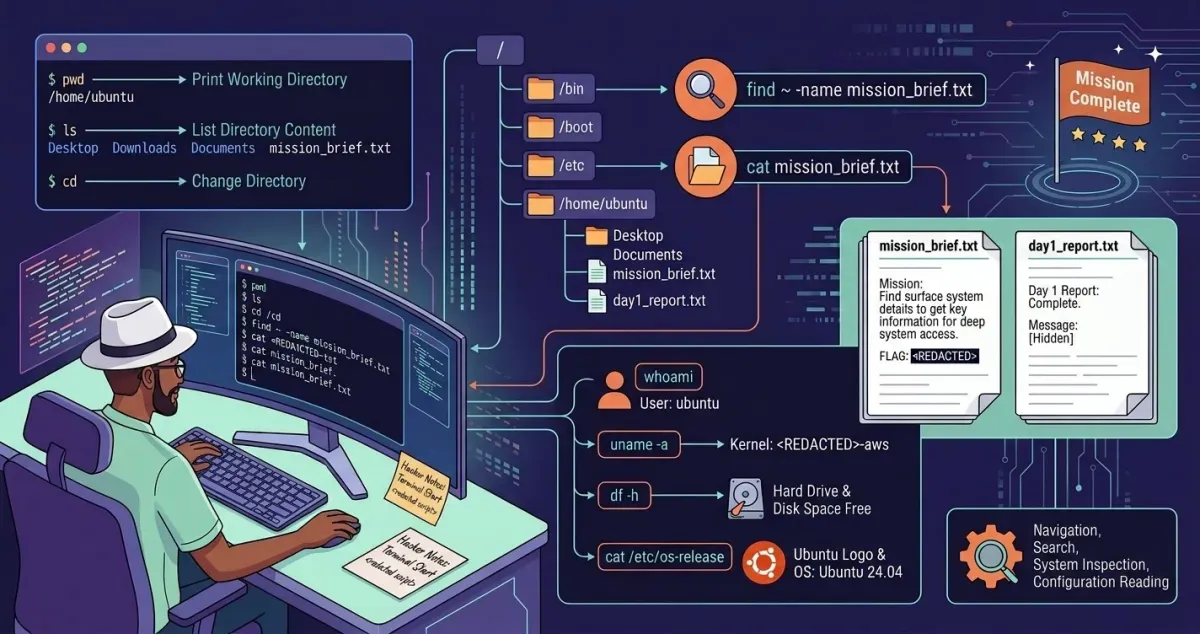
This is my write-up for the TryHackMe room on Linux CLI Basics ↗. Written in 2026, I hope this write-up helps others learn and practice cybersecurity.
Task 1: Introduction#
Summary: This task introduces the Linux Command-Line Interface (CLI) as an essential tool for navigating servers, using security tools, and setting up hacking environments. It establishes a storyline where you play a new IT Support Engineer tasked with learning basic terminal navigation to find your supervisor’s notes.
Prerequisites#
What does “CLI” stand for?
Command-Line Interface
Task 2: Navigation Mission: “Find the Missing Notes”#
Summary: This section teaches the fundamental commands for navigating the Linux filesystem. You learn pwd to print your current directory, ls (along with -l and -al flags) to list files including hidden ones, and cd to change directories. It also introduces the find command to locate specific files across the system and the cat command to read their contents, culminating in finding a file named mission_brief.txt.
What is the full path of the mission_brief.txt file found on the system using the find command?

Just run and wait for the complete path to appear.
/home/ubuntu/Documents/.research/archive/mission_brief.txt
What is the flag hidden inside the mission_brief.txt file?
then run the script to the full path with the cat command
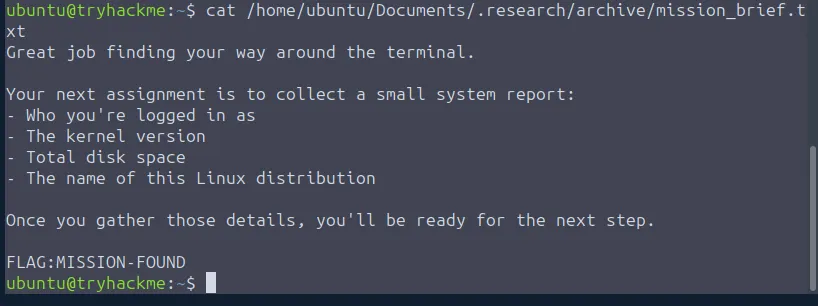
MISSION-FOUND
Task 3: Investigating the System#
Summary: Here, the focus shifts to gathering system information to understand the environment you are operating in. You are introduced to whoami to check your current user, uname -a to get kernel and architecture details, and df -h to check disk space in a human-readable format. Additionally, you learn to explore the /etc directory to read configuration files like os-release. The task ends with a mini-challenge to find and read a file called day1_report.txt.
What is the username returned by the whoami command?
ubuntu
What is the kernel version shown by uname -a?
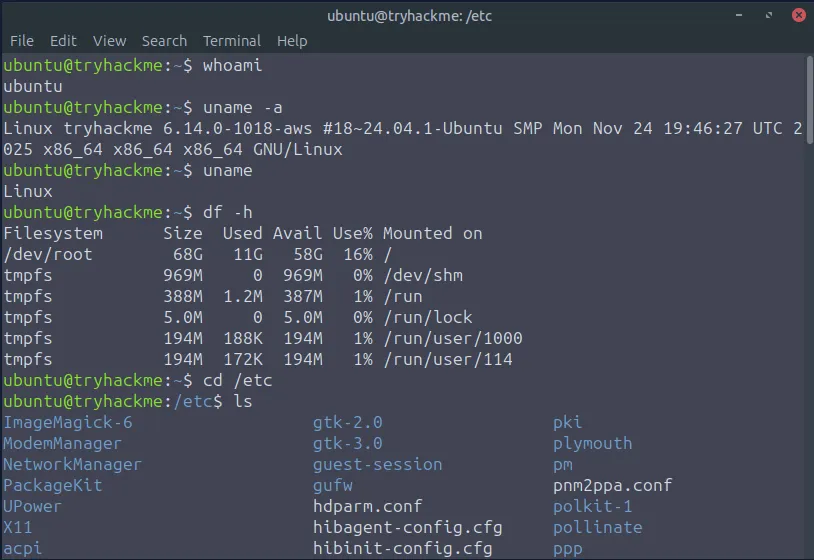
6.14.0-1018-aws
How much free disk space does df -h report?
58G
What is the message written inside day1_report.txt?
We can run this script first to find the file path: find ~ -name day1_report.txt
Once found, it’s at this path: /home/ubuntu/.logs/archive/day1_report.txt
Just run it with the cat command: cat /home/ubuntu/.logs/archive/day1_report.txt
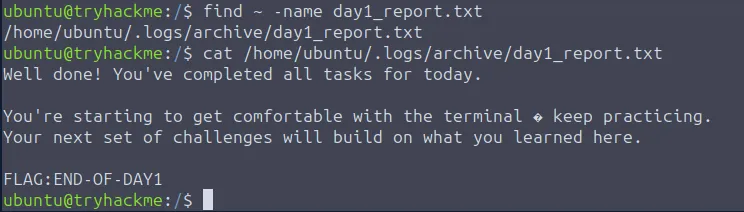
END-OF-DAY1
Task 4: Conclusion#
Summary: This final task summarizes the skills acquired during your “first day” on the job. It recaps that you have successfully learned to navigate the filesystem, search for files, inspect system info, and read configs. These basics serve as the foundation for learning more advanced Linux topics like file permissions, processes, and security tooling.
Continue to complete the room.
No answer needed
Thanks for reading. See you in the next lab.